

How to Manage Email Overload: A Practical Fix for Busy Business Owners
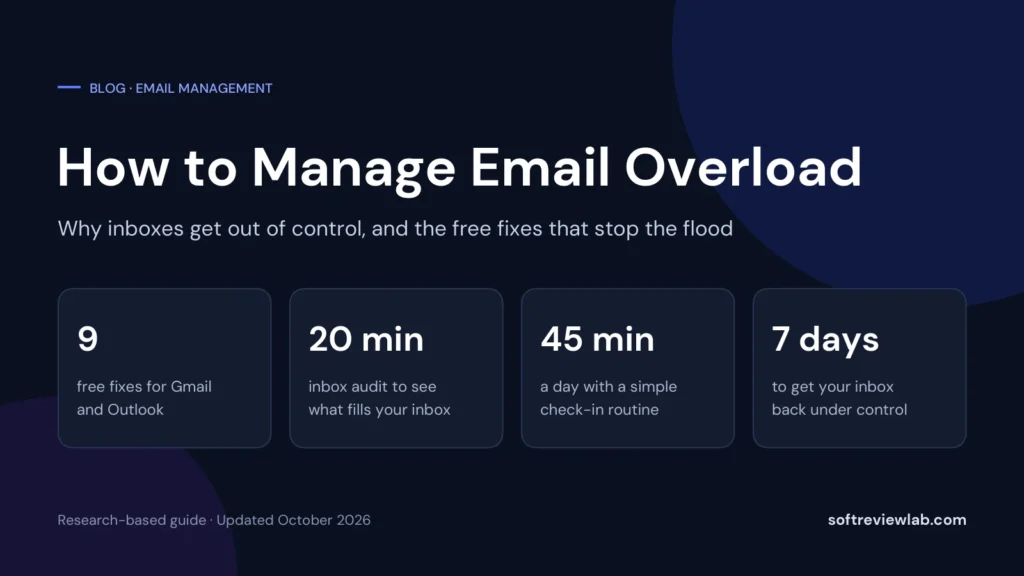
How to manage email overload: why inboxes get out of control, 9 free fixes for Gmail and Outlook, a daily routine, a 7-day plan,…
By Abdullahi Abdirahman, Founder & Editor, SoftReviewLab. Updated October 2026.
Short answer: to post on social media consistently when you have no time, stop writing posts on the day you publish them. Pick two networks, write a month of posts in one sitting, schedule them in advance with the free schedulers Facebook, Instagram and LinkedIn already offer, and share your best evergreen posts again every few months. That takes about two hours a month plus a 15-minute weekly check. If you have tried this and still go quiet, one of the four reasons below is usually behind it.
The posting routine below is my own advice for busy business owners, and the SocialBee section comes from my 14-day test of the tool and its pricing page, checked October 9, 2026. This article contains affiliate links; see our affiliate disclosure.
Most owners who stop posting have one main reason, sometimes two. Match what you notice to a reason below, then go straight to that section.
| What you notice | The reason | Where to start |
|---|---|---|
| You open the app and don’t know what to say | You run out of ideas | Reason 1 |
| Posts get pushed to tomorrow, then to next week | No time on the day | Reason 2 |
| A good post gets a few likes and is never seen again | Good posts are used once | Reason 3 |
| You post the same idea in three or four apps | Too many networks | Reason 4 |
The blank page is the most common reason. Deciding what to say takes longer than writing it, so posting waits for a day with spare energy, which rarely comes.
To prevent it, sort your ideas into four or five content buckets and give each one a regular day. Buckets that work for most small businesses:
If you are already stuck, list your 10 most common customer questions. Each one is a post. Then turn each idea into several formats: one answer can become a tip, a short video, a quote card and a question post.
Same-day posts are the first thing dropped in a busy week. The answer is to stop posting live.
To keep it from coming back, use a simple content calendar: a spreadsheet with the date, network, bucket, the post and a status column (draft, scheduled, posted). It shows a gap before it happens.
A tip, an answer or a customer review is as useful in six months as it is today, and most of your followers missed it the first time. Writing a new post for every slot is the slow way to stay active.
Save every evergreen post in one place and share it again every few months, with a fresh image or opening line now and then. Keep dated posts, such as sales and events, in a separate list so they never repeat by mistake. After a few months, this library alone can fill a third of your schedule.
Every extra network adds work without doubling the results. Consistent doesn’t mean daily or everywhere; it means a rhythm you can keep for a year. Start with the two networks where your customers already ask questions or leave reviews:
| Network | Starting rhythm | Best suited to |
|---|---|---|
| 3 posts a week | Local businesses, events, offers and reviews | |
| 3 posts a week | Products, food, beauty, design and anything visual | |
| 2 to 3 posts a week | B2B services, consultants and hiring | |
| Google Business Profile | 1 post a week | Local search: updates, offers and opening hours |
| TikTok | 2 to 3 short videos a week | Anything you can show in action |
Add a third network only once the first two run without effort.
The steps above keep most small businesses posting on one or two networks. They start to strain when you post to three or more networks from different apps, when re-sharing a large evergreen library by hand takes hours, or when you still run dry by week three. That repetitive work is what a scheduler with categories and recycling is built for, and the one I recommend is SocialBee.
SocialBee is a social media scheduling and management tool for small businesses, freelancers and agencies. You write, store and schedule your posts in one place, and it publishes them directly to up to 10 networks: Facebook, Instagram, Threads, LinkedIn, TikTok, Pinterest, YouTube, X, Bluesky and Google Business Profile. Every plan also includes AI post writing, Canva for visuals, an inbox for comments and messages, and analytics.
Everything in SocialBee is built on content categories, the same idea as the content buckets above.
Here is how it covers each of the four reasons:
| Reason | What SocialBee does |
|---|---|
| Run out of ideas | AI Copilot reads your website and drafts posts for each category, and Canva is built in for visuals |
| No time on the day | A weekly schedule of time slots publishes your posts for you |
| Good posts are used once | Evergreen categories recycle posts, and dated posts can expire after a date or a number of shares |
| Too many networks | One schedule for Facebook, Instagram, Threads, LinkedIn, TikTok, Pinterest, YouTube, X, Bluesky and Google Business Profile |
I tested it for 14 days on the Pro trial. Connecting LinkedIn and Pinterest took about a minute each, I built three categories, and all of the roughly 38 posts I scheduled went out at their set times. My site’s RSS feed also turned new articles into posts on both networks with no extra work.
You don’t need it if one or two networks and the free schedulers already keep you on track, and the two cheaper plans include one user, so a team should check that first. Plans, pros and cons are in our SocialBee review. If it sounds like it fits your routine, you can start SocialBee’s 14-day free trial, which gives full Pro access and needs no credit card.
If you start the trial, this order gets a working schedule set up in one sitting.
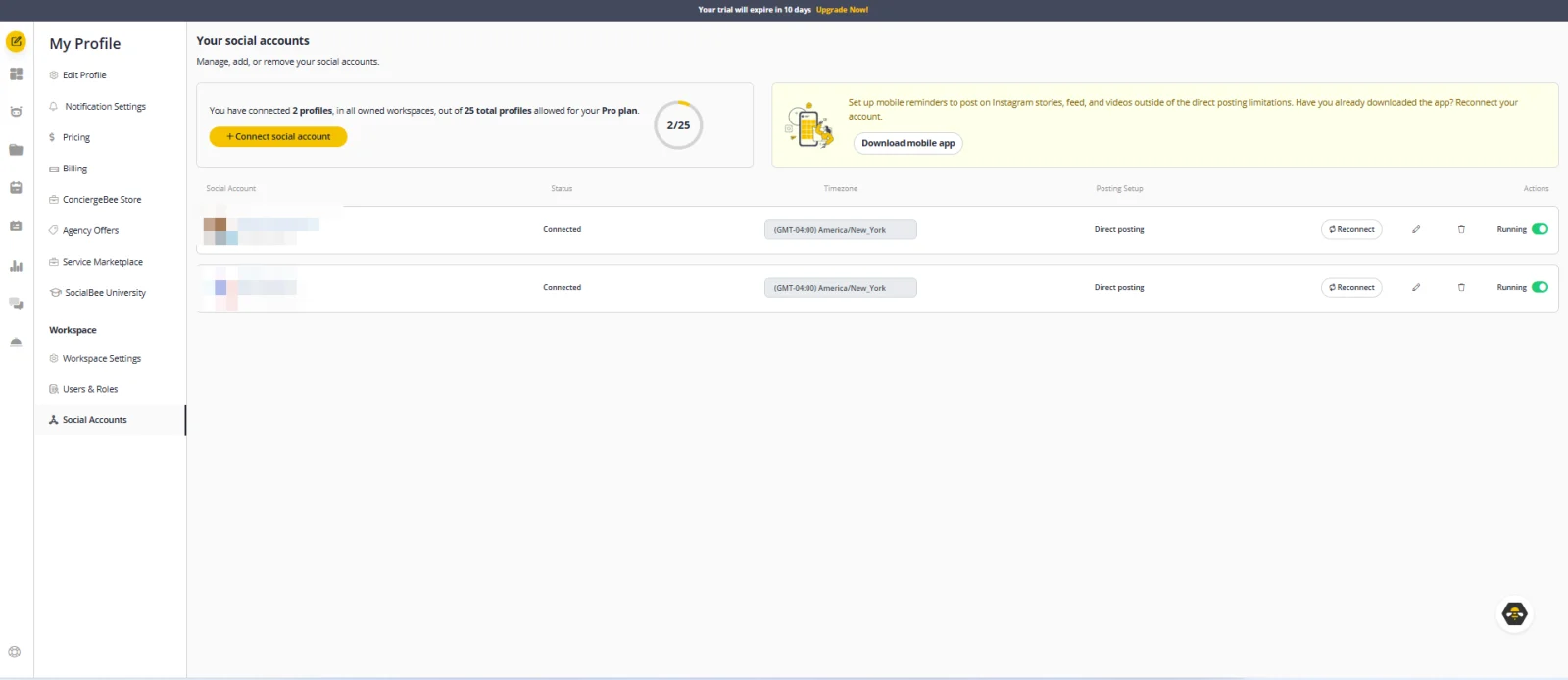
On the Social accounts page, click Connect social account, choose the network and sign in to give SocialBee permission to post. Add only the networks you chose in reason 4. In my test, connecting LinkedIn and Pinterest took about a minute each.
Each profile then shows its status, time zone and posting setup. Check the time zone and posting settings of every profile before you schedule anything.
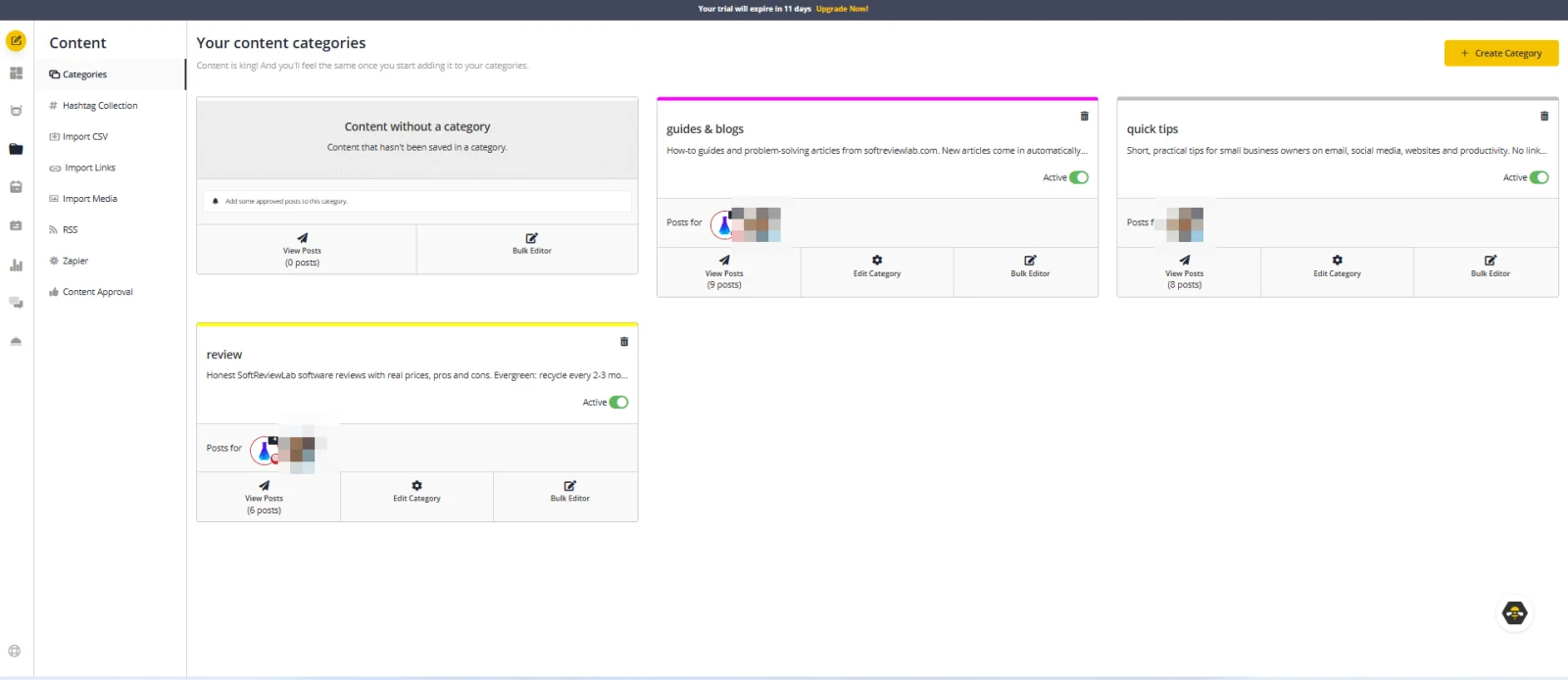
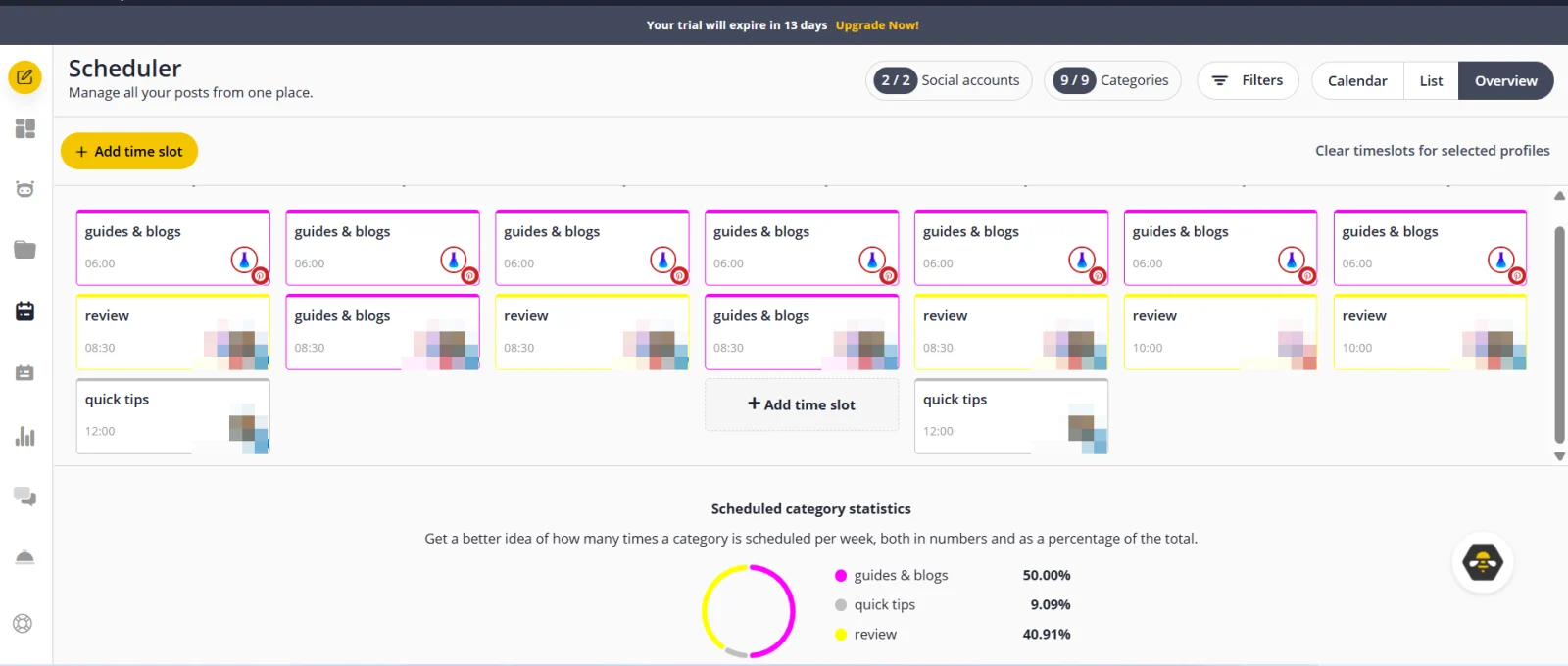
Create one category per content bucket, such as tips, questions, reviews and offers. Set evergreen categories to recycle, and set dated posts, like a sale, to expire so they never go out twice.
Add time slots and tie each slot to a category and to profiles. A tips slot on Monday morning, for example, always publishes the next tip in line. The schedule shows each category’s share of your week, so you can keep offers to a small slice.
Write your posts yourself or let AI Copilot draft them. Copilot reads your website, fills in your services, tone and audience, suggests categories and writes posts that wait for your approval. Read every draft before you approve it: some of the posts it wrote in my test promised a team, a contest and a live Q&A that don’t exist.
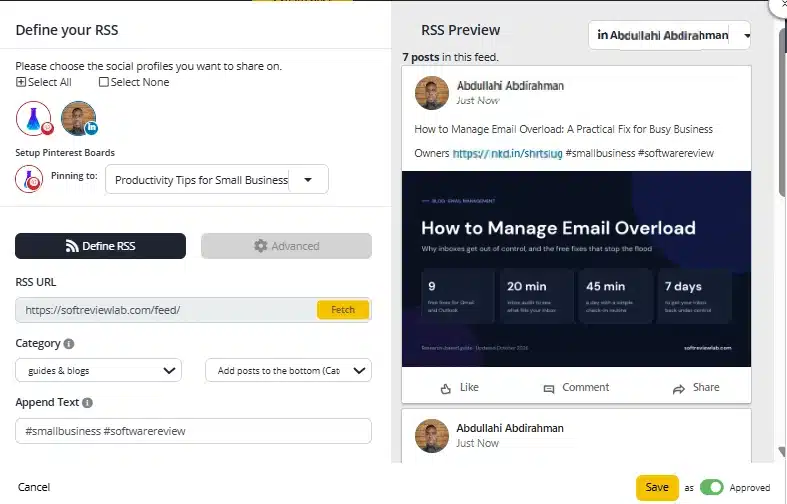
If you publish articles, add your site’s RSS feed to a category. New articles become posts for the profiles you choose, with hashtags added, and on Pinterest you pick the board.
The dashboard shows scheduled, published and failed posts, and a weekly email sums up the results for each network. The inbox lets you answer comments and messages from Facebook, Instagram, Threads, LinkedIn, YouTube and X in one place; replies on Pinterest, TikTok, Bluesky and Google Business Profile still happen in their own apps.
SocialBee isn’t the only scheduler, and the right one depends on how many people post and which networks matter most to you. Our review compares its starting price and pricing model with Buffer, Later, Hootsuite and Sprout Social in SocialBee vs other social media scheduling tools.
Start with a rhythm you can keep, such as three posts a week on Facebook or Instagram and two or three on LinkedIn. Keeping it up every week matters more than posting daily for a short time.
Yes. Meta Business Suite schedules Facebook and Instagram posts, LinkedIn lets you schedule page posts, and YouTube lets you set a publish time. A paid scheduler helps when you manage several networks in one place or want posts to recycle.
Yes, for evergreen posts such as tips, answers and reviews, if you space them out by a few months and refresh the wording or image now and then. Don’t repost dated offers or events.
Answer a common customer question, share a review, show how you do your work, or share an older post that is still useful. Most followers didn’t see it the first time.
Keep reading
How to manage email overload: why inboxes get out of control, 9 free fixes for Gmail and Outlook, a daily routine, a 7-day plan,…
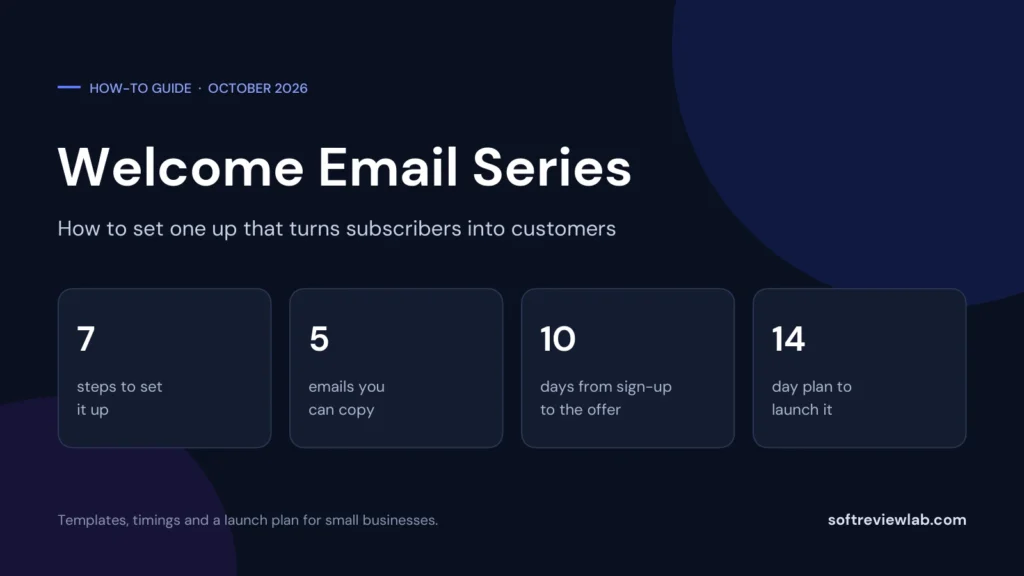
How to set up a welcome email series: 7 steps, a 5-email template you can copy, timings, free ways to run it, what to…
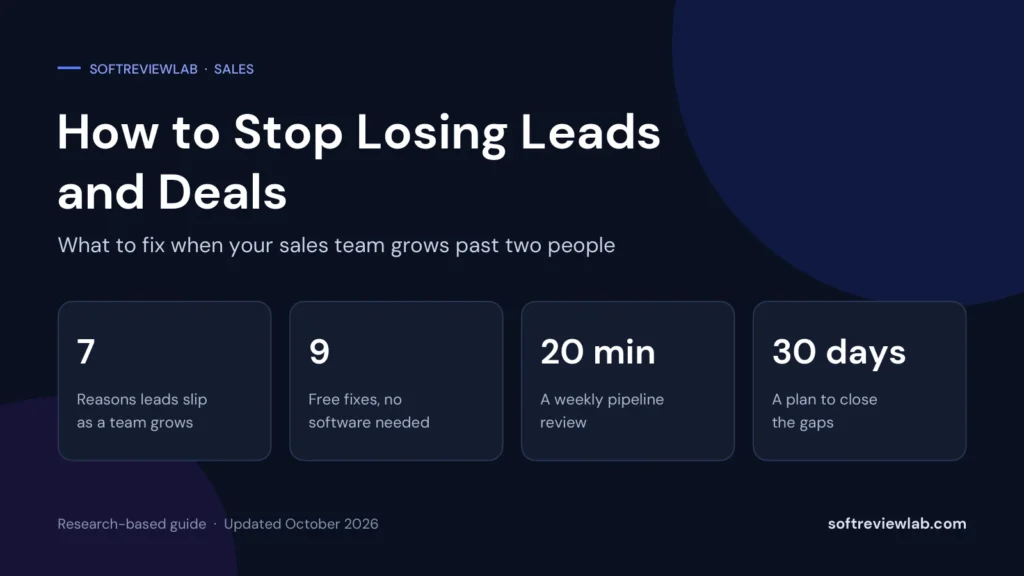
Build a lead follow-up process that stops leads and deals getting lost as your team grows: 7 causes, 9 free fixes, a lead tracking…