

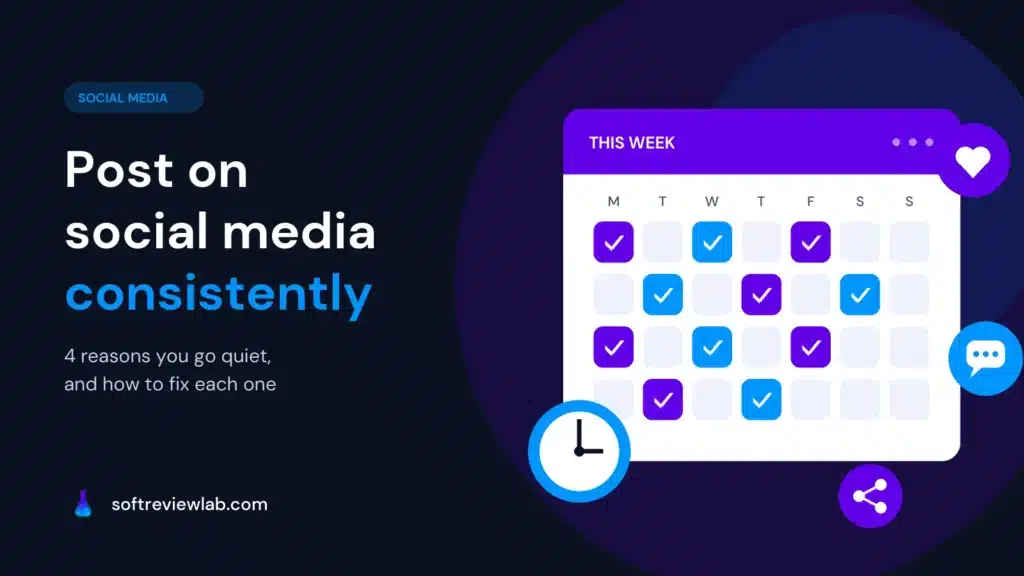
How to Post on Social Media Consistently When You Have No Time
Why posting on social media slips, how to fix each reason without paying, and how to use SocialBee when free schedulers stop being enough.
By Abdullahi Abdirahman, Founder & Editor, SoftReviewLab. Updated October 2026.
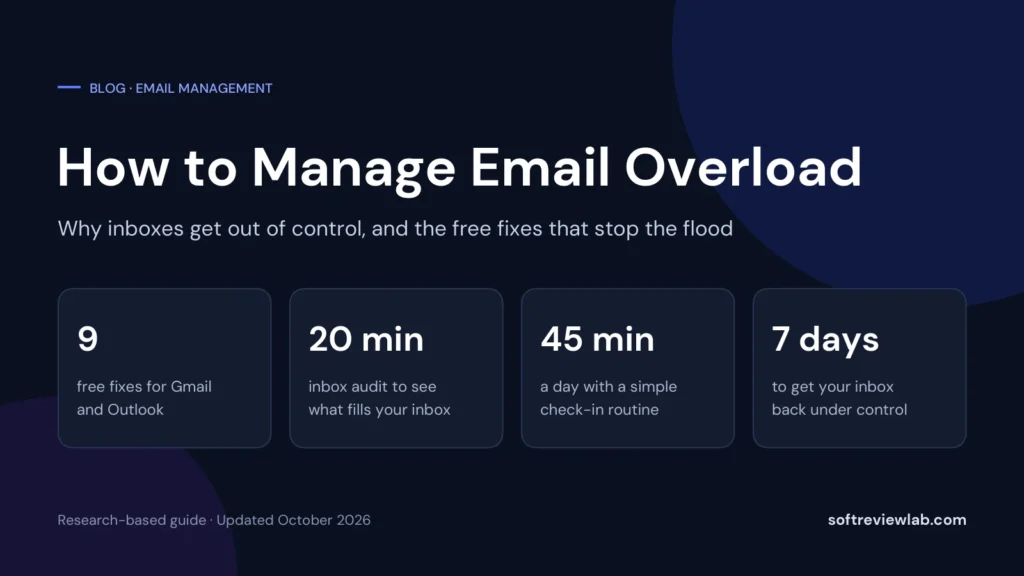
Short answer: how to manage email overload comes down to one change: stop treating your inbox as one pile. Unsubscribe from what you never read, send automated mail such as receipts and notifications to its own folder with filters, check email at set times instead of all day, decide what to do with each message the first time you open it, and keep a short list of emails that are waiting for a reply. All of that is free in Gmail and Outlook and takes an afternoon to set up. If you have tried it and your inbox still wins, an email filter such as SaneBox can do the sorting for you, but it is an option, not a requirement.
This article is research-based. The routine and the fixes are my own editorial advice for busy business owners, the Gmail and Outlook steps come from Google’s and Microsoft’s help pages, and the details about SaneBox come from its own pages and from my review. The time figures in the cost section are an illustration, not a study. Disclosure: SoftReviewLab is a SaneBox affiliate partner, and this page contains an affiliate link. If you sign up through it, SoftReviewLab may earn a commission at no extra cost to you. See our affiliate disclosure.
Most business owners do not get too much email from people. They get too much email from systems: order confirmations, shipping updates, invoices, software notifications, newsletters they signed up for once, social media alerts and marketing from every company they have ever bought from. The messages from customers, staff and suppliers, the ones that actually need you, end up buried in that stream.
Four habits turn that stream into a flood:
The obvious cost is time. A rough illustration, with numbers you can swap for your own: if you spend 90 minutes a day on email and a third of that is spent scanning and deleting messages you never needed, that is 30 minutes a day, or about two and a half hours in a five-day week, on mail that should never have reached you. Over a year that is about three working weeks.
The less obvious costs are bigger. A customer question answered two days late can be a lost sale. A supplier invoice missed under the newsletters can mean a late fee. A quote that went unanswered and was never followed up is revenue you will not hear about. And the constant switching between real work and the inbox makes everything else take longer.
None of this needs software to fix. It needs a few rules, set once, and a routine.
Before you change anything, look at what is actually arriving. Open your inbox and go through the last 100 messages, or the last two days if you get fewer. Put each one in one of these groups and count them:
| Group | Examples | What usually happens to them |
|---|---|---|
| From people who need you | Customers, staff, suppliers, partners | Keep in the inbox and act on them |
| Automated but useful | Receipts, invoices, shipping updates, bank alerts | Send to a folder with a filter, look weekly |
| Notifications | Software alerts, social media, calendar updates | Filter away, or turn off at the source |
| Newsletters you read | Industry news, a few favourite senders | Send to a reading folder, read at a set time |
| Newsletters and marketing you ignore | Old sign-ups, shop promotions | Unsubscribe or block |
Most people find that the first group, the mail that actually needs them, is a small share of the total. That is good news. It means most of the overload can be removed with filters and unsubscribes, before you change a single habit.
Ways to Manage Email Overload in Gmail and OutlookThese work in Gmail and Outlook and cost nothing. Do the first three this week and the rest over the following week.
Go through the ignored-newsletters group from your audit and unsubscribe from each one, using the unsubscribe link at the bottom of the email. It takes a few seconds per sender and removes them for good. For senders that ignore unsubscribe requests, block them. Google’s help page on blocking explains that after you block a sender in Gmail, all their future emails go to spam.
Receipts, invoices, shipping updates and notifications do not need to interrupt you. Create a filter for each type so it skips the inbox and lands in its own folder, which Gmail calls a label. Google’s filter guide shows how: search for the sender or a word in the subject, click Create filter, and choose to apply a label and archive the message. Outlook does the same job with rules. Check those folders once a week, or when you need a specific receipt.
A good first set of filters for a small business: one for receipts and invoices, one for shipping and order updates, one for software notifications, and one for newsletters you actually read.
Both big providers can separate personal mail from bulk mail on their own. In Gmail, the default inbox type sorts mail into tabs: Primary for people you know, and Social, Promotions, Updates and Forums for the rest. According to Google’s guide to inbox categories, dragging a message to a different tab teaches Gmail where future mail from that sender belongs. In Outlook, Focused Inbox splits mail into Focused and Other, and moving a message between them, with the option to always move that sender, teaches Outlook what matters to you.
Either way, you then work from the Primary or Focused view and check the rest when you have time.
Turn off new-mail notifications on your computer and phone, and open your inbox at set times instead: for example at 9am, after lunch and at 4pm. If your business needs faster replies, make it every hour on the hour. The point is that you decide when email gets your attention, rather than every message deciding for you.
Tell the people who rely on you. A line in your email signature or on your website saying how quickly you reply, and how to reach you for anything urgent, removes most of the pressure to watch the inbox all day.
Every email needs one of four decisions, and the trick is to make it on the first read:
What you should not do is read it, think about it and leave it in the inbox. That is how the same 200 emails get read five times a week.
Snoozing removes an email from your inbox and brings it back at a time you choose. Google’s snooze guide explains that a snoozed email waits in the Snoozed folder and comes back to the top of your inbox at the chosen time. Use it for anything you cannot act on yet: a supplier who said they will reply on Friday, a payment due next week, a reminder to follow up with a lead.
Create a folder or label called Waiting For. When you send an email that needs a reply, such as a quote, an invoice or a question to a supplier, copy it or move your sent message there. Once a week, go through the folder and follow up on anything that has gone quiet. It takes ten minutes and recovers deals and payments that would otherwise slip away.
Most businesses answer the same ten questions every week: prices, opening hours, delivery times, how to pay. Write your best answer to each once and save it as a reusable template in Gmail or Outlook. Answering a common question then takes a few seconds instead of a few minutes.
If you have thousands of old emails, do not try to read them. Search for everything older than a month and archive it in one go. Archived mail is not deleted and stays searchable. In Gmail the search is older_than:30d, one of the operators listed in Google’s search guide, and you can combine it with is:unread to catch only unread mail. Then deal only with what arrives from today onwards. If something old was important, the sender will write again or you will find it by search.
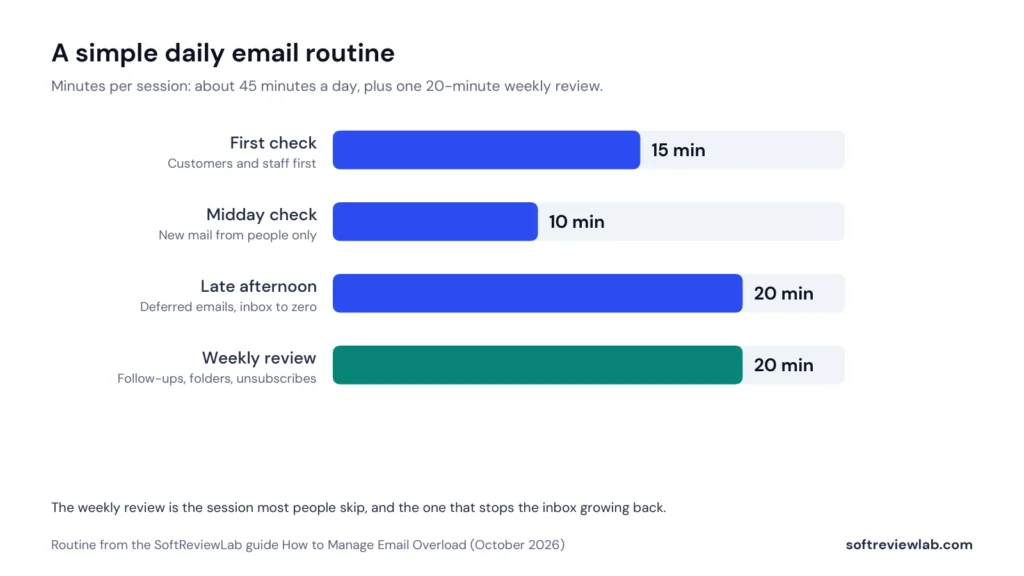
The fixes above only hold if you have a routine. This one takes about 45 minutes a day for most small business owners.
| When | What to do | Time |
|---|---|---|
| First check of the day | Reply to anything from customers and staff that takes under two minutes. Defer or snooze the rest | 15 minutes |
| Midday check | Clear new mail from people. Leave filtered folders alone | 10 minutes |
| Late afternoon | Work through deferred emails. Empty the inbox to zero or close to it | 20 minutes |
| Once a week | Follow up on the Waiting For list. Skim the receipts and newsletters folders. Unsubscribe from anything new you ignored | 20 minutes |
The weekly session is the one people skip, and it is the one that stops the inbox from growing back. Put it in your calendar like a meeting. Protect the routine on your phone too. Turn off new-mail alerts for everything except the people you have marked as important, so the routine is not broken by a buzz every few minutes. A routine only works if the interruptions stop between sessions.
Part of your incoming mail is a reaction to what you send. Vague emails create back-and-forth, and every reply you send invites another. A few habits cut the volume at the source:
None of these takes extra time once they become habits, and together they reduce the replies that come back to you, especially from staff and regular customers who learn to write the same way.
If several people answer email for the business, for example at a shared info@ or sales@ address, overload looks different. The risk is not that nobody sees an email, but that everyone assumes someone else answered it. Three rules help:
For a busy shared inbox, a dedicated customer support tool may serve you better than email rules. That is a different problem from personal email overload, and I cover it in my reviews of support tools.
For many people, the fixes above are all they need. They stop being enough when the maintenance becomes a job in itself. These are the signs:
If two or more of those describe your week, an email filter that learns who matters to you can take over the sorting. If none of them do, keep the free system running. It works.
For a business owner who has tried the free fixes and still loses important email, I recommend looking at SaneBox. It is one option among several, and I explain below who should skip it.
I scored SaneBox 7.5 out of 10 in my SaneBox review, with its best marks for ease of use and for how widely it works. The reason it fits this problem is that it replaces the most tiresome part of the free system, writing and maintaining filters, with sorting that learns from what you do. It also covers two fixes that are hard to keep up by hand: a list of emails still waiting for a reply, and reminders to follow up.
SaneBox is an email filter that works behind your existing account. You do not install anything or change email apps. According to its FAQ, it looks at how you have dealt with each sender in the past, such as which emails you open and answer and how quickly, and asks your email server to move less important mail into a folder called SaneLater. A daily digest email lists what was filtered, so you can rescue anything that matters.
Because the sorting happens on the server, the folders appear in every app you use: Gmail on the web, Outlook on your laptop, the mail app on your phone. Its privacy policy says it accesses only the envelope and header information of your email, such as sender and subject, and that your email stays on your own provider’s server.
| The free fix | The SaneBox equivalent |
|---|---|
| Unsubscribe and block | SaneBlackHole: drag a sender there once and you stop seeing them, plus unsubscribe suggestions in the digest |
| Filter automated mail into folders | SaneLater and SaneNews sort automatically, without rules to write |
| Let the inbox split itself | Works across Gmail, Outlook, iCloud, Yahoo and other providers in the same way |
| Snooze what cannot be done today | Snooze folders, including ready-made ones for tomorrow and next week |
| Keep a Waiting-For list | SaneNoReplies lists sent emails that have had no answer, and Reminders nudge you to follow up |
| Check at set times | SaneDoNotDisturb holds back email during focus time |
Two cautions from my review. First, in its default mode SaneBox moves first-time senders to SaneLater, so a new customer’s first email can land there instead of your inbox. Check SaneLater and the digest every day until it has learned your contacts. Second, the trial is only seven days, so start it on a busy working day and correct its sorting from the first morning.
I have kept prices out of this article on purpose. The plans, what each one includes, the refund terms and the full list of pros and cons are in my SaneBox review. If your inbox matches the problem in this article and you would like to see what SaneBox does with it, you can try SaneBox free for 7 days. Its homepage says no credit card is needed to start.
| Day | What to do |
|---|---|
| 1 | Run the 20-minute audit and count each group |
| 2 | Unsubscribe from every newsletter and promotion you ignored. Block senders that do not stop |
| 3 | Create four filters: receipts and invoices, shipping and orders, notifications, newsletters you read |
| 4 | Turn on Gmail tabs or Outlook Focused Inbox. Turn off new-mail notifications. Set your three checking times |
| 5 | Archive everything older than 30 days in one search. Create a Waiting For folder |
| 6 | Save templates for your five most common replies |
| 7 | Do your first weekly review. Note how long email took each day this week compared with last week |
After a week, you will know whether the free system is enough. If email still takes more than an hour a day and important messages still slip, that is the point to try a filter like SaneBox.
Unsubscribe from what you do not read, filter automated mail such as receipts and notifications into folders, check email at set times, decide what to do with each message the first time you open it, and keep a list of emails waiting for a reply. Clear old mail by archiving everything older than a month in one go.
Mostly automated mail rather than messages from people: newsletters, promotions, receipts and software notifications. Habits make it worse, especially using the inbox as a to-do list and checking it all day.
For most business owners, three set times a day is enough: morning, after lunch and late afternoon. If your customers expect faster replies, check once an hour at fixed times rather than whenever a message arrives.
Archive them. Archived email leaves your inbox but stays searchable, so you can find an old message when you need it. In Gmail you can select everything older than 30 days with the search older_than:30d and archive it in one step.
Archive everything older than 30 days, unsubscribe from the newsletters you ignore, turn on the default inbox tabs so promotions and updates are separated, and create filters for receipts and notifications. Most of the work can be done in one afternoon.
An empty inbox at the end of each day is realistic once filters and a routine are in place, because the inbox then holds only messages that need you. The goal is not zero for its own sake, but knowing that nothing important is buried.
No. Gmail and Outlook have the filters, tabs, snooze and templates you need. Software such as SaneBox becomes worth paying for when maintaining filters takes too much time, when you use several accounts or apps, or when important emails still get missed.
Keep reading
Why posting on social media slips, how to fix each reason without paying, and how to use SocialBee when free schedulers stop being enough.
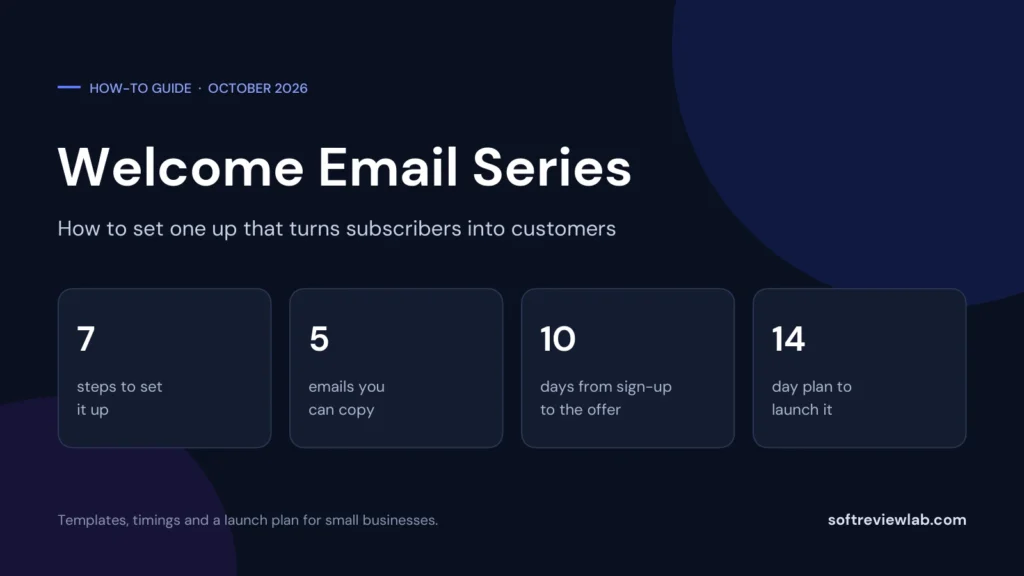
How to set up a welcome email series: 7 steps, a 5-email template you can copy, timings, free ways to run it, what to…
Build a lead follow-up process that stops leads and deals getting lost as your team grows: 7 causes, 9 free fixes, a lead tracking…