


How to Respond to a Negative Google Review (With Examples)
A negative review is read by every customer who comes after it. Here is how to respond to a fair complaint, a review that…
By Abdullahi Abdirahman, Founder & Editor, SoftReviewLab. Updated October 2026.
Short answer: a website is usually slow because of images that are too large, too many plugins or scripts, no caching, a heavy theme or a host that responds slowly. Test your site with Google’s free PageSpeed Insights first, because it tells you which of these applies. Most slow small business sites get much faster from a few changes that cost nothing: compress and resize images, turn on caching, remove plugins and scripts you don’t use, update PHP and add a CDN. If your server still takes more than 0.8 seconds to respond after that, the host itself is the bottleneck, and moving to faster hosting is the fix that settings can’t replace.
The speed thresholds come from Google’s web.dev guidance, the steps are my own advice, and the Hostinger section and screenshots come from my own Hostinger account, which runs this site. This article contains affiliate links; see our affiliate disclosure.
Don’t guess. Open PageSpeed Insights, enter your homepage, and look at the mobile result first, because most visitors arrive on a phone. Then test one product or service page and one blog post, since a single heavy page can hide behind a fast homepage.
If your site has enough visitors, the top of the report shows real-user data from Chrome. Below it, a lab test scores the page and lists what to fix. Google’s Core Web Vitals are the three numbers that matter most, measured at the 75th percentile of visits:
| Metric | What it measures | Good |
|---|---|---|
| Largest Contentful Paint (LCP) | How long the main content takes to appear | 2.5 seconds or less |
| Interaction to Next Paint (INP) | How quickly the page responds to a tap or click | 200 milliseconds or less |
| Cumulative Layout Shift (CLS) | How much the page jumps around while loading | 0.1 or less |
Also note the server response time, called Time to First Byte. Google’s TTFB guidance says most sites should aim for 0.8 seconds or less. That number tells you whether the delay is in your pages or in your hosting.
A visitor who waits on a blank screen often goes back to the search results and clicks a competitor, and you never learn they were there. Slow pages also make every ad click and social post that sends people to your site less effective, because part of the traffic you paid or worked for leaves before the page appears. And Core Web Vitals are part of how Google assesses page experience, so a consistently slow site works against you in search too.
Work through these in order. The first four fix most slow small business sites, and none of them costs anything.
Resize images to the largest size they are actually shown at, usually no more than 1,600 pixels wide for a full-width image, and save them as WebP. On WordPress, a free image optimization plugin can convert and compress existing images in bulk. Check your largest pages first: the image at the top of a page often decides your LCP.
Caching saves a ready-made copy of each page so the server doesn’t rebuild it for every visitor. Many hosts include a cache: if your host runs LiteSpeed servers, the free LiteSpeed Cache plugin for WordPress uses it directly. Otherwise, use the caching option in your hosting panel or a well-known free caching plugin. Use one caching plugin, not two.
Deactivate and delete every plugin you can’t name a reason for. Then look at third-party scripts: chat widgets, heatmaps, several analytics tags and social feeds. Keep the ones that earn their place and remove the rest. PageSpeed Insights lists the scripts that slow your page the most.
In your hosting panel, check which PHP version your site runs and move to a current supported version. Take a backup first and check the site afterwards, because very old plugins can break on newer PHP. This site runs PHP 8.5 without problems.
If your theme loads sliders, animations and features you never use, a lightweight theme can cut a large share of the page weight. A page builder is not automatically slow: this site uses the lightweight Hello Elementor theme with Elementor. What matters is how much each page loads.
A CDN keeps copies of your images, styles and scripts on servers around the world and serves them from the one closest to each visitor. Cloudflare has a free plan, and some hosting plans include a CDN you can switch on in the panel.
WordPress lazy-loads images by default, so images further down the page load as the visitor scrolls. Replace embedded videos near the top of a page with a thumbnail that loads the video only when clicked, and avoid auto-playing video.
Use one or two font families and only the weights you need. Every extra weight is another file to download before text looks right.
Old post revisions, spam comments and leftover data from deleted plugins slow the database over time. Many cache and optimization plugins include a database cleanup tool. Back up first.
After the steps above, test again. If the page weight is now reasonable but the site is still slow, look at the server:
If two or more of these apply, no plugin will fix it. The fix is a faster hosting plan or a better host, and the best time to move is before your current plan renews. My guide on moving a website to a new host without downtime covers the switch itself. If you are choosing a host with speed in mind, the one I use for this site and recommend is Hostinger.
Sponsored

Hostinger is a web hosting company that sells web hosting, cloud hosting and VPS plans, all managed from its own control panel, hPanel. It is built for small businesses and site owners who want WordPress, a domain and email in one place without managing a server themselves. I have been a Hostinger customer since 2023, and SoftReviewLab runs on its Unlimited web hosting plan.
Your site runs on Hostinger’s LiteSpeed web servers, and you manage everything else in hPanel. The dashboard shows each site’s health, PHP version, backups, cache and speed scores on one screen, so you can check most of the causes above without installing anything.
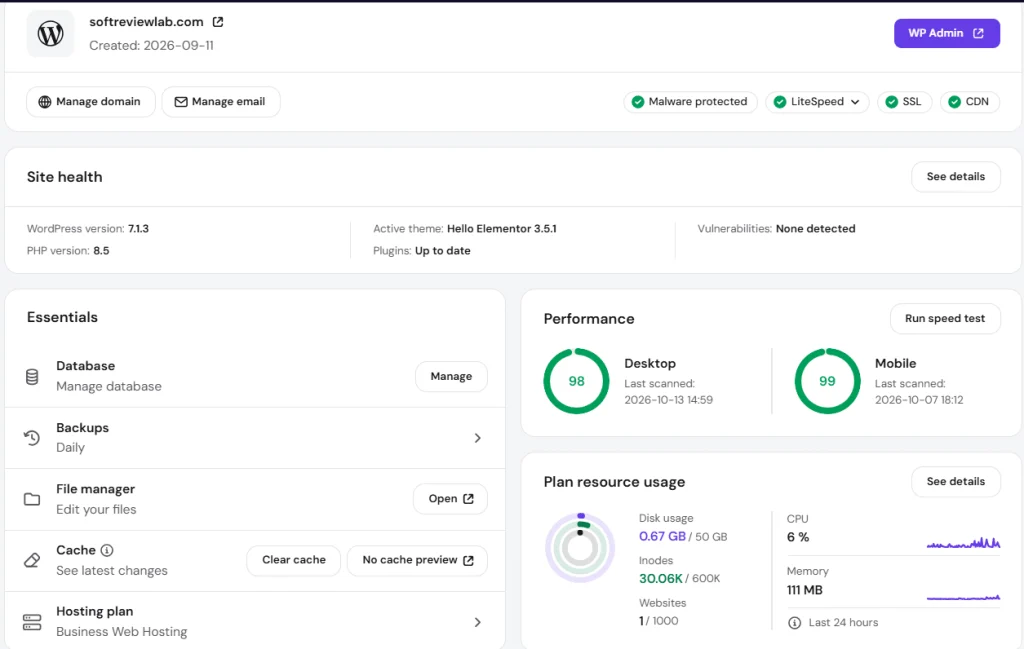
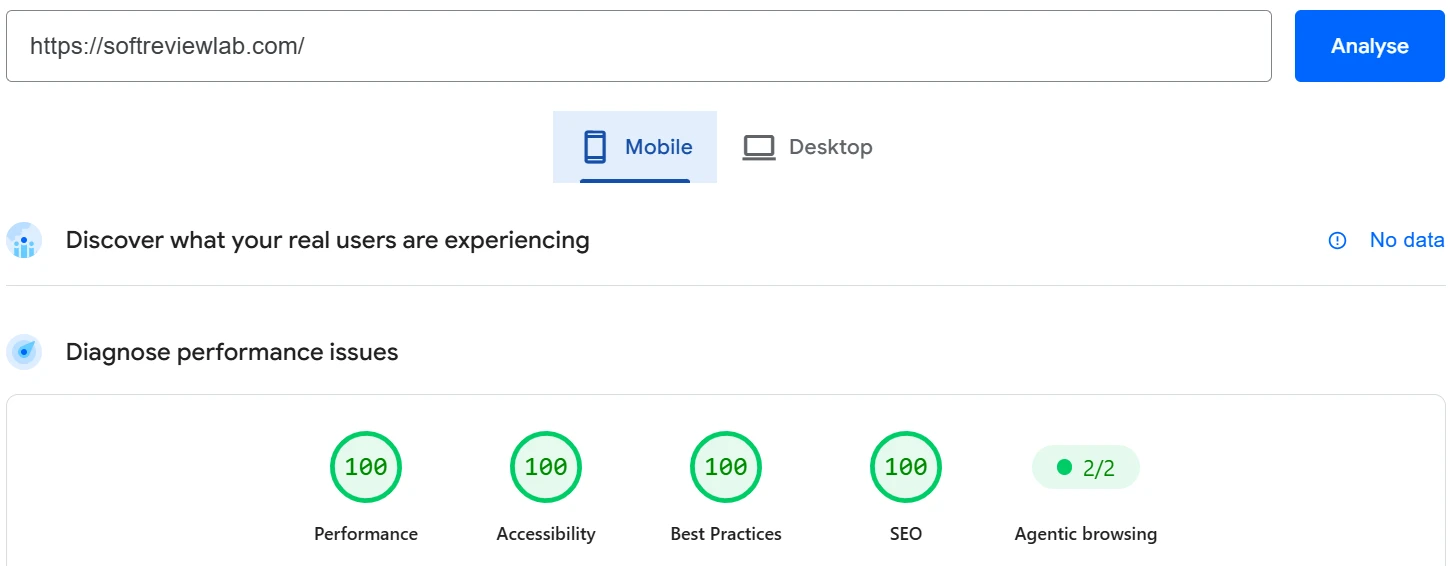
When I tested this site for this article, Google’s PageSpeed Insights scored the homepage 100 for performance on both mobile and desktop, and the hPanel dashboard shows CPU at 6% and 111 MB of memory in use. One honest caution: those scores are for one light site. A heavy store with large images will score lower on any host until the page itself is fixed. Choose Unlimited rather than Premium if speed matters. Plans, renewal prices and the refund I tested are in my full Hostinger review.
If you are convinced a faster host is what your site needs, you can see Hostinger’s plans, and you are welcome to use my 20% referral discount. Hostinger offers free website migration, so you don’t have to move the site yourself.
If your site is already on Hostinger, or you move it there, these four steps cover most of the speed settings.
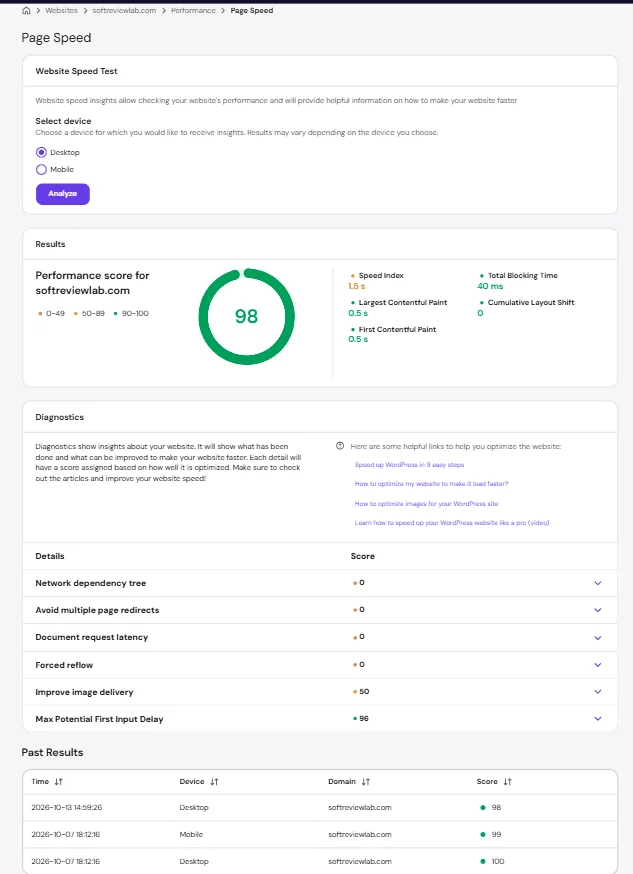
Open your site’s dashboard in hPanel and choose Page Speed in the left sidebar. Pick Desktop or Mobile, click Analyze, then read the performance score, the main metrics and the diagnostics list. Past results stay on the page, so you can compare before and after each change.
In the dashboard, search for Cache Manager, which sits under Advanced. Switch on Automatic cache, and use Purge All after you change a page so visitors see the new version. On WordPress, install the free LiteSpeed Cache plugin as well, and keep it as your only caching plugin.
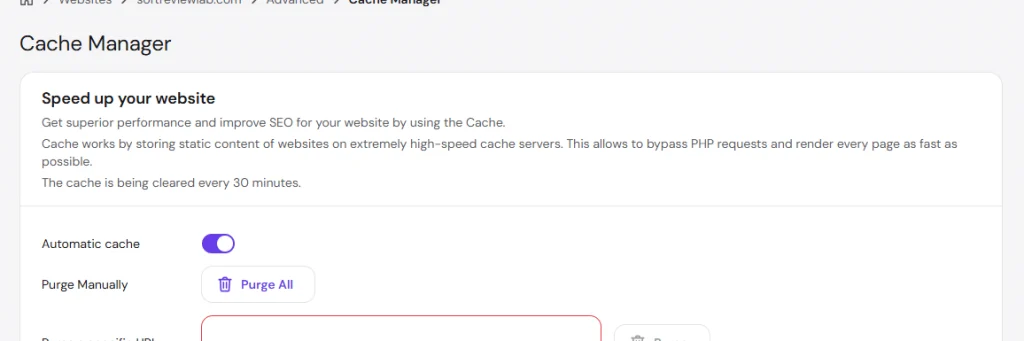
Check the PHP version in the dashboard’s Site health box and move to a current version after taking a backup. Then keep an eye on Plan resource usage: if CPU or memory sits near its limit during busy hours, the plan, not the page, is slowing you down.
On Unlimited and Cloud Startup, turn on the CDN in hPanel so images, styles and scripts load from a server near each visitor. The dashboard shows a CDN badge once it is active.
Phones have slower processors and often slower connections, so large images, heavy scripts and big fonts hurt more on mobile. Test the mobile result in PageSpeed Insights and fix the items it lists first.
Each plugin can add code and database work, but the number matters less than what each one does. One heavy plugin can slow a site more than ten light ones. Remove the ones you don’t use and check the scripts PageSpeed Insights flags.
Keep reading
A negative review is read by every customer who comes after it. Here is how to respond to a fair complaint, a review that…

DMARC tells Gmail and Outlook what to do with email that pretends to come from your domain. Here is what it does, why small…

A site missing from Google is either not indexed or not ranking, and each has a different fix. Here is how to tell which…