

How to Respond to a Negative Google Review (With Examples)
A negative review is read by every customer who comes after it. Here is how to respond to a fair complaint, a review that…
DMARC tells Gmail and Outlook what to do with email that pretends to come from your domain. Here is what it does, why small businesses need it and how to set it up without blocking your own mail.

By Abdullahi Abdirahman, Founder & Editor, SoftReviewLab. Updated November 2026.
Short answer: what is DMARC? It is a short DNS record that tells Gmail, Outlook and other mailbox providers what to do with an email that claims to come from your domain but fails the SPF and DKIM checks, and sends you reports on everyone sending email as you. A small business needs it for two reasons: it makes it much harder for a scammer to send invoices in your name, and the big mailbox providers now require it from anyone sending email in volume. Gmail requires DMARC from senders of more than 5,000 messages a day, and Outlook.com rejects mail from high-volume domains that don’t authenticate. The safe way to set it up is to start with a monitoring-only policy and a report address, fix every service that sends as you, and only then tell providers to block failing mail.
This article is research-based. The requirements come from Google’s and Microsoft’s own documentation, checked in October 2026, and I checked SoftReviewLab’s own DNS records for the example below.
Disclosure: SoftReviewLab is an SMTP.com affiliate partner. If you sign up through the SMTP.com link on this page, we may earn a commission at no extra cost to you. See our affiliate disclosure.
Email was built without any way to prove who sent a message. Anyone can type your company name and address into the From line. Three DNS records fix that, and DMARC only works on top of the other two:
There is one detail that trips up most businesses: alignment. Passing SPF or DKIM is not enough on its own. In Google’s words, the domain in the From address must be aligned with either the SPF domain or the DKIM domain to pass DMARC. If your website sends contact-form emails from your address through your host’s server, SPF may pass for the host’s domain while DMARC still fails for yours.
The first reason is protection. Without DMARC, nothing stops someone from sending an email that looks exactly like it came from your accounts team, asking a customer to pay a new bank account. With DMARC at an enforcement policy, providers that check it will send that email to spam or refuse it.
The second reason is delivery. Since February 2024, Google’s sender guidelines require every sender to Gmail to set up SPF or DKIM. Senders of more than 5,000 messages a day to Gmail must have SPF, DKIM and DMARC, keep the spam rate shown in Postmaster Tools below 0.1% and never let it reach 0.3%, and support one-click unsubscribe on marketing email. Google accepts a DMARC policy of none for that requirement. Microsoft announced similar rules for Outlook.com, Hotmail and Live addresses: from May 5, 2025, high-volume domains that fail SPF, DKIM and DMARC have their messages rejected with error 550 5.7.515.
If you send fewer than 5,000 emails a day, those bulk-sender rules don’t apply to you yet. DMARC is still worth the ten minutes, because it is the only one of the three records that tells you who is sending as your domain.
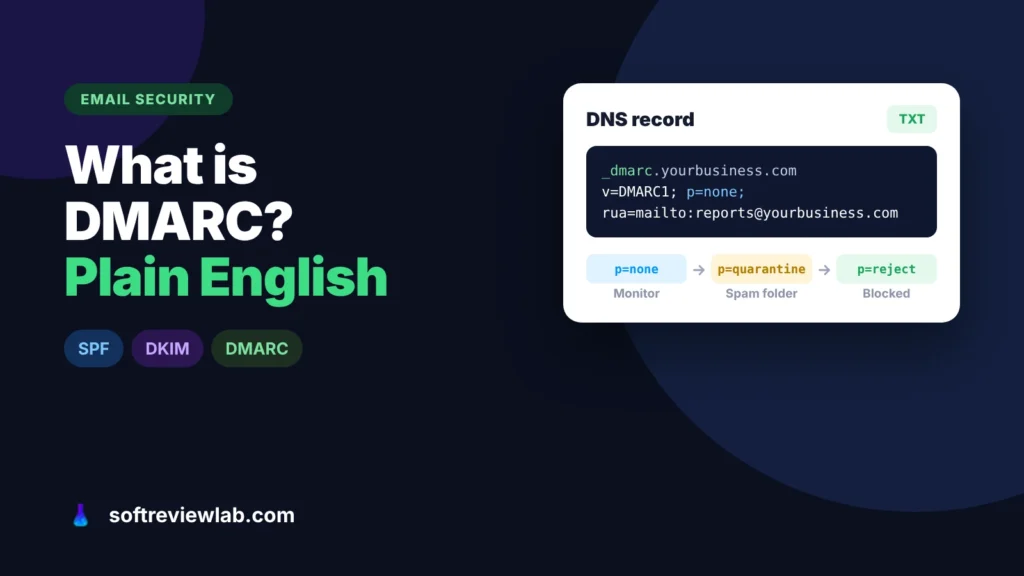
A DMARC record is a TXT record at the host _dmarc.yourdomain.com. Each part is a tag:
| Tag | What it means | Typical value |
|---|---|---|
| v | Version, always first | DMARC1 |
| p | Policy for mail that fails: none (monitor only), quarantine (spam folder) or reject (refuse) | Start with none |
| rua | Where providers send daily summary reports | mailto:dmarc@yourdomain.com |
| pct | The share of failing mail the policy applies to, so you can tighten it gradually | Raise in steps to 100 |
| adkim and aspf | Strict (s) or relaxed (r) alignment for DKIM and SPF | Relaxed, the default |
A good starting record for most small businesses is v=DMARC1; p=none; rua=mailto:dmarc@yourdomain.com. Google’s DMARC setup guide shows examples with strict alignment, but it also warns that strict alignment can get mail from your subdomains rejected or marked as spam and says relaxed alignment is usually enough. Gmail doesn’t send the detailed per-message failure reports set by the ruf tag, so the rua summary reports are the ones that matter.
Before writing this, I looked up SoftReviewLab’s records. SPF and DKIM were in place for Hostinger’s mail service: an SPF record that includes Hostinger’s mail servers and three DKIM records. The DMARC record was simply v=DMARC1; p=none, with no report address.
That is the most common half-finished setup. It meets the letter of Gmail’s bulk-sender rule, but with no rua address nobody receives the reports, so there is no way to know whether it is safe to move to quarantine or reject. The fix is one addition to the record: a report address.
Since then, SoftReviewLab started sending a newsletter through MailerLite, so the SPF record now includes MailerLite’s servers as well as Hostinger’s. That is step 1 below in practice: every new service that sends as your domain has to be added to SPF and DKIM before you tighten DMARC.
Write down every service that sends with your address in the From line: your mailbox provider, your website and contact forms, your email marketing tool, your accounting or invoicing software, your CRM and your help desk. Most businesses find more senders than they expected. Each one must pass SPF or DKIM in alignment, or DMARC will eventually block it.
Google recommends setting up SPF and DKIM and giving them 48 hours before you add DMARC. Keep a single SPF record for the domain, and turn on DKIM signing in your mailbox provider and in every sending tool that offers it. My guide to why website emails go to spam walks through both records with examples.
Look up the TXT record for _dmarc.yourdomain.com with a free lookup tool such as Google Admin Toolbox Dig. Your host or a previous web designer may already have added one, as on my domain. A domain must have only one DMARC record. If you find two, merge them into one, because the standard tells receiving servers to ignore DMARC when there is more than one.
Publish or update the record to v=DMARC1; p=none; rua=mailto:dmarc@yourdomain.com. Use a dedicated mailbox or group for the reports, as Google recommends, because they arrive daily from every provider that receives your mail. If the report address is on a different domain, that domain needs its own DNS record to accept the reports.
The reports are XML files, which are hard to read by hand, so use a free DMARC report viewer to turn them into a list of sending sources. For each source, check three things: is it a service you use, does it pass SPF or DKIM, and is it aligned with your domain? Anything you don’t recognise sending in volume as you is worth investigating.
For each tool that fails, follow its own help article for domain authentication. Usually that means adding the DKIM records it gives you, and sometimes adding it to your SPF record. If a tool can’t authenticate with your domain, send from a subdomain or move that email to a service that can.
When the reports show only your own services, and all of them passing, change the policy to quarantine. Google suggests using the pct tag to apply it to a small share of failing mail first and raising it until you reach 100%. After a few weeks with no problems, move to reject. Keep reading the reports afterwards, because every new tool you add is a new sender to authenticate.
Most of the steps above are a few DNS records and an hour of reading. The part that defeats many small businesses is step 6: email sent by the website itself. Order confirmations, password resets and contact-form messages often go out through the web host’s shared mail function, which can’t be properly aligned with your domain. While those emails exist, moving to reject would block your own mail, so the domain stays stuck at p=none.
If that describes your site, the answer is to send those emails through a service that signs them with your domain. SMTP.com is a service built for exactly that job.
SMTP.com is an email delivery service, also called an SMTP relay. Your website, shop or app hands its emails to SMTP.com instead of your host’s shared mail function, and SMTP.com delivers them.
You add the SPF and DKIM records SMTP.com gives you to your domain, connect your website through its SMTP settings or REST API, and every message goes out signed with your domain. Bounces and complaints are processed automatically, and the delivery logs show what happened to each email.
Because the DKIM signature carries your domain, the emails your website sends line up with your From address and pass DMARC. That removes the sender that kept you at p=none, so you can move to quarantine and reject without blocking your own order confirmations. It also offers a dedicated IP option and support by phone, chat and email. Sending this kind of email is its whole business: SMTP.com is part of Ziff Davis, the group that also owns Campaigner, and says it has more than 22 years of email delivery behind it.
Who should skip it: if all your email goes out from Google Workspace or Microsoft 365 and from an email marketing tool that already supports DKIM on your domain, you don’t need a separate delivery service. Fix the records in those tools instead.
My SMTP.com review covers its plans, limits and trade-offs. If it fits your setup, you can try SMTP.com here.
If you try it, work from the DMARC reports you are already collecting, so you can see the website’s emails move from failing to passing. The plugin and plan details are in the spam guide I mentioned in step 2; here I focus on the DMARC side.
In your report viewer, look for a source that sends your order, password or contact-form emails from your host’s servers and fails alignment. Note roughly how many messages it sends a month, because that number decides which SMTP.com plan you need.
Add the SPF and DKIM records SMTP.com gives you for the domain that appears in your From address. If you prefer to keep website email separate and send from a subdomain such as mail.yourdomain.com, relaxed alignment, the default, still counts it as your domain.
Change your website’s SMTP settings or SMTP plugin to SMTP.com. If the reports showed your shop, CRM or help desk failing too, switch those at the same time, so you only wait for one round of reports.
Send yourself a test to a Gmail address, open “Show original” and confirm that DMARC says PASS. If DKIM passes but DMARC fails, the signing domain doesn’t match your From address, so fix that before you go further.
In the next reports, the website’s emails should appear under SMTP.com with SPF or DKIM aligned. Once every source you recognise passes, go back to step 7 and start tightening the policy.
For a full checklist on getting email into the inbox, including list hygiene and spam complaints, see my B2B email deliverability guide.
No. DMARC protects your exact domain. It can’t stop someone registering a similar-looking domain with one letter changed and sending from that. Train your team and customers to check the sender’s address, especially on payment requests.
It is enough to meet Gmail’s requirement for bulk senders, and it is the right place to start. It doesn’t protect anyone, though, because providers still deliver mail that fails. Treat it as a temporary monitoring stage on the way to quarantine or reject.
Only if you enforce it before every legitimate sender is authenticated. A policy of none never blocks anything, which is why you start there and read the reports first.
Keep reading
A negative review is read by every customer who comes after it. Here is how to respond to a fair complaint, a review that…
A site missing from Google is either not indexed or not ranking, and each has a different fix. Here is how to tell which…

How to add your business to Google Maps for free, verify it, fix a listing that isn’t showing, and rank higher in local search,…