

How to Respond to a Negative Google Review (With Examples)
A negative review is read by every customer who comes after it. Here is how to respond to a fair complaint, a review that…
By Abdullahi Abdirahman, Founder & Editor, SoftReviewLab. Updated October 2026.
Short answer: here is how to add your business to Google Maps: create a free Business Profile at business.google.com/add, enter your real business name, category, address or service area, phone number and hours, then verify that you own the business. Google offers verification by phone or text, email, live video call, video recording or postcard, depending on your business, and reviews the result in up to five business days. If your business already appears on Maps, you don’t create a new listing: you claim the existing one. The whole process costs nothing, and no one can pay Google to rank higher. Leaving it undone has a cost of its own: if your business has no profile, or an unclaimed one with the wrong hours, a nearby customer searching for what you sell sees the businesses that look complete and open, and calls one of them instead.
The steps, rules and timings below come from Google’s own Business Profile Help pages, checked in October 2026, and the advice on what to do at each step is mine. This article contains no affiliate links.
Before you start, check that your business is eligible, because a profile that breaks the rules can be removed after all the work. Google’s guidelines for representing your business allow two kinds of business:
A few situations catch people out:
A purely online business with no place to visit and no area it travels to, such as an online shop that only ships orders, doesn’t fit either category.
Set aside about 20 minutes and have your phone and business email to hand. Use a Google account you will keep, ideally linked to your business email rather than a staff member’s personal account.
Open Google Maps and search for your business name and city. Customers or Google itself sometimes create a listing before the owner does. If you find it, select Claim this business, then Manage now, and skip to verification. If the listing is already verified by someone else, such as a former employee or an agency, request ownership from the current owner instead of creating a second profile.
If there is no listing, go to business.google.com/add and select Add your business to Google. Google’s add or claim your Business Profile page confirms there is no charge.
Use the name on your sign, website and invoices, and nothing more. Google’s rules forbid adding taglines, service keywords, locations, phone numbers or all-capital words. “Shelly’s Coffee” is fine; “Shelly’s Coffee – Best Espresso Downtown” is not. Adding keywords is the most common way small businesses put their profile at risk, and it doesn’t help them rank.
Pick the category that completes the sentence “This business is a…”, as specific as possible: “Emergency plumber” rather than “Service”. Use as few categories as you need. Categories describe what the business is, not every service it offers, so don’t add extra ones as keywords.
If customers come to you, enter your exact street address, with the suite or floor on the second line, and keep permanent signage at that address. If you travel to customers, set a service area based on the cities or postcodes you cover and hide your address. Google says a service area generally shouldn’t extend beyond about two hours’ drive from your base.
Add a phone number that a person answers, because one of the verification methods may call it. Add your website if you have one, and your regular customer-facing hours. Appointment-only businesses shouldn’t list opening hours, and seasonal businesses should mark themselves temporarily closed in the off-season rather than delete the profile.
Verification proves to Google that you own or manage the business. Until it is complete, your profile may not appear on Maps, and edits may not go live. You don’t choose the method: according to Google’s verification help page, Google decides which options each business sees.
After you complete a method, Google reviews it, which takes up to five business days. Three habits avoid most delays:
This is one of the most searched questions about Business Profiles, and the cause is usually one of these:
Google’s local ranking guidance names three factors. Relevance is how well your profile matches the search. Distance is how far you are from the searcher. Prominence is how well known your business is, including reviews, ratings and links from other websites. Google is clear that you can’t pay for a better local ranking. What you can influence:
No, a Business Profile works on its own, and for some small local businesses it brings in more calls than their website. But a website gives Google more to understand about what you offer, gives customers somewhere to go after they find you, and is where most of the links that build prominence point. If you are weighing it up, I worked out what a small business website really costs to run per year, with three real budgets.
If your site runs on WordPress, an SEO plugin can also add local business schema, structured information that tells Google your name, address and hours in a format it reads directly. My Squirrly SEO review covers one plugin that includes it.
Yes. Creating, claiming, verifying and editing a Google Business Profile costs nothing, and Google says there is no way to pay for a better local ranking. Anyone who charges you for “guaranteed” Maps placement is selling something Google doesn’t offer.
Once verification is complete, Google reviews it in up to five business days. If you verify by postcard, add up to 14 days for the code to arrive. Search your exact business name to check whether the profile is live.
Yes, if you serve customers at their location. Set up a service-area business, choose the areas you cover and hide your address, so customers see your service area instead of your home.
The most common reasons are that the review is still in progress, the profile is being checked again after an edit, or you are searching by category instead of by name. If a “Get verified” button reappears, Google couldn’t complete verification and you need to try again.
You need either a place customers can visit or an area you serve in person. A P.O. box or a virtual office address isn’t accepted. Online-only businesses with no in-person service aren’t eligible.
Keep reading
A negative review is read by every customer who comes after it. Here is how to respond to a fair complaint, a review that…
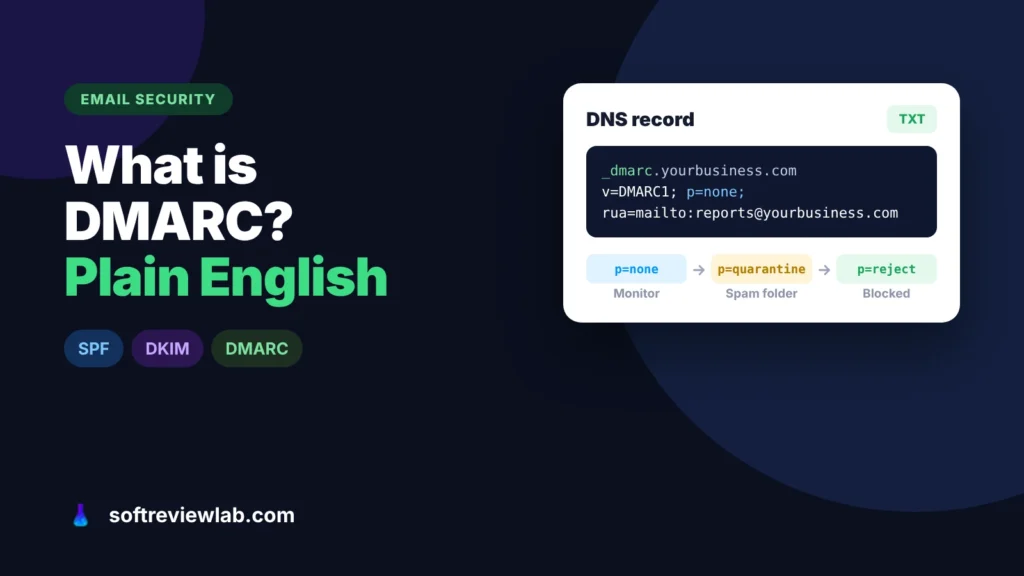
DMARC tells Gmail and Outlook what to do with email that pretends to come from your domain. Here is what it does, why small…
A site missing from Google is either not indexed or not ranking, and each has a different fix. Here is how to tell which…