
How to Post on Social Media Consistently When You Have No Time
Why posting on social media slips, how to fix each reason without paying, and how to use SocialBee when free schedulers stop being enough.
Website emails going to spam or never arriving? Here's why it happens, 7 free fixes you can make today, and when a dedicated email delivery service is worth it.

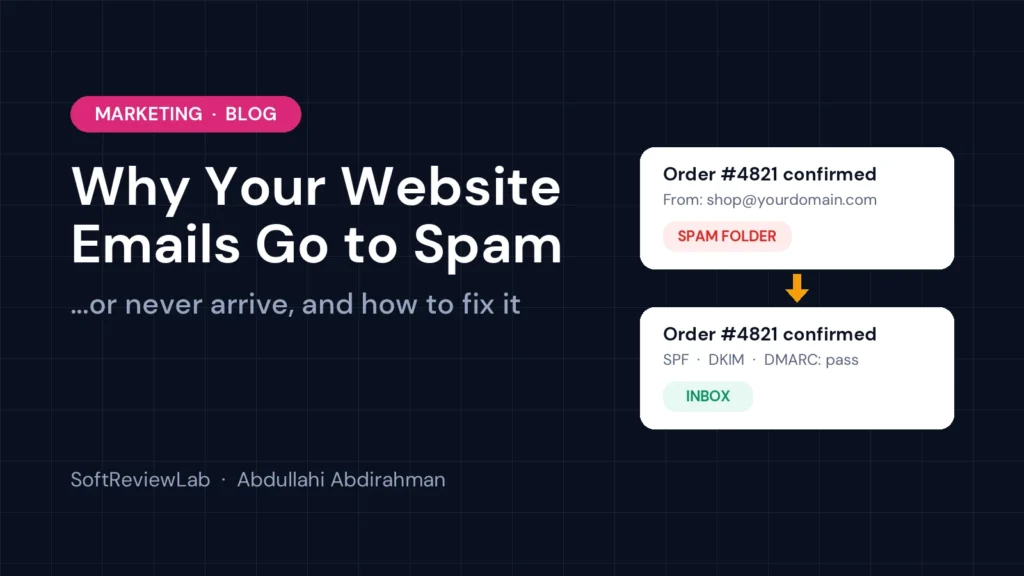
By Abdullahi Abdirahman, Founder & Editor, SoftReviewLab. Updated October 2026.
Disclosure: SoftReviewLab is an SMTP.com affiliate partner. This page contains affiliate links, and if you sign up through them, SoftReviewLab may earn a commission at no extra cost to you. See our affiliate disclosure.
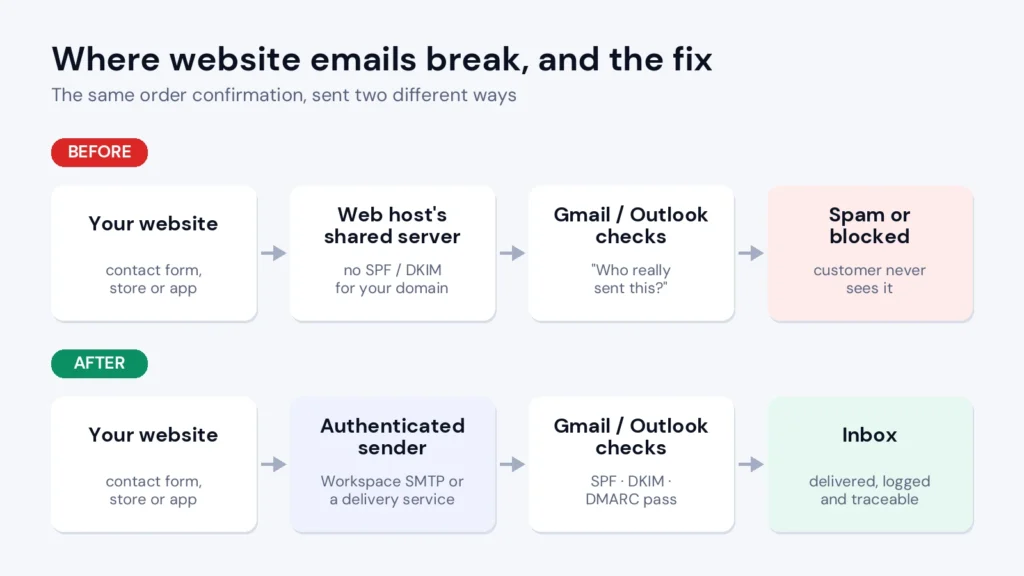
Short answer: if you’re finding your website emails going to spam or never arriving, the cause is almost always the same. Your website is sending mail through your web host’s shared server, and Gmail, Outlook and Yahoo cannot confirm that your domain really sent it. The fix is to authenticate your domain (SPF, DKIM and DMARC) and send your website’s email through a proper, authenticated sender instead of the host’s default mail function. Most small businesses can do this for free in an afternoon. Below is exactly how.
This problem is easy to miss because nothing looks broken on your side. The order goes through, the form says “Thank you”, and you assume the email went out. Meanwhile, the customer is checking their inbox and finding nothing.
Here is what that looks like in a real business. A customer pays, never gets the order confirmation and emails you asking if the payment went through, or worse, disputes the charge. A new user tries to reset their password, waits ten minutes, gives up and never comes back. A potential client fills in your contact form, and the notification lands in your own spam folder, so you reply three days late, after they have already hired someone else. Every one of these is a lost sale or a support ticket that should never have existed, and most business owners only find out when a customer complains.
The good news: this is one of the few technical problems that is completely fixable, and you don’t need to be technical to fix it.
When Gmail or Outlook receives an email, it asks one question before anything else: can this sender prove they are who they say they are? Website emails fail that test far more often than normal emails, for four reasons.
Work through these in order. Steps 1 to 5 cost nothing and fix the majority of cases on their own.
Place a test order or submit your own contact form using a personal Gmail address. When the email arrives (check spam too), open it, click the three dots and choose “Show original”. Gmail shows you three lines near the top: SPF, DKIM and DMARC. If any of them says FAIL or is missing, you have found your problem. If the email never arrives at all, your host’s server is likely being blocked outright.
SPF is a single line of text in your domain’s DNS settings that lists who may send email for you, for example your Google Workspace or Microsoft 365 account and any sending service you use. Two common mistakes: having two separate SPF records (you are only allowed one, so merge them), and adding so many services that the record exceeds 10 DNS lookups, which makes it fail. Your email provider’s help pages give you the exact value to copy. For a business on Google Workspace, it typically looks like v=spf1 include:_spf.google.com ~all.
DKIM adds a digital signature to every email so the receiver can check it wasn’t forged or altered. In Google Workspace and Microsoft 365 it’s a setting you switch on, then you paste a record into your DNS. It takes about ten minutes and is one of the strongest trust signals you can give Gmail.
DMARC tells providers what to do when SPF or DKIM fails and sends you reports about who is sending as your domain. Start with a monitoring-only policy (p=none) so nothing gets blocked while you learn. A safe starting record, added on _dmarc.yourdomain.com, is v=DMARC1; p=none; rua=mailto:dmarc@yourdomain.com. Once the reports show all your legitimate email passing, you can tighten it to quarantine and later reject. This also stops scammers from sending fake invoices in your company’s name.
Every email your website sends should come from an address on your own domain, such as orders@yourbusiness.com or noreply@yourbusiness.com. In your contact form settings, keep the “From” as your domain address and put the visitor’s email in the “Reply-To” field instead. You can still hit reply and answer them directly, and the message now passes authentication.
This is the step that fixes most WordPress and website email problems. Install a free SMTP plugin from the WordPress plugin directory (most website builders have a similar setting) and connect it to the email account you already pay for, such as Google Workspace or Microsoft 365. Your website’s emails now leave through a trusted, authenticated server instead of the shared host, at no extra cost.
Send newsletters from a subdomain such as news.yourbusiness.com, and keep your main domain for orders, invoices and one-to-one email. Remove addresses that bounce. If you send to a lot of Gmail users, sign up for Google’s free Postmaster Tools, which shows your domain’s spam rate and reputation directly from Gmail. For a deeper walkthrough of the sender rules and recovery steps, our B2B email deliverability guide covers them in full.
Website emails and newsletters look similar, but mailbox providers treat them very differently, and understanding the difference helps you protect the emails that matter most.
Transactional emails are triggered by something a person did on your site: placing an order, booking an appointment, resetting a password or submitting a form. People expect them and usually open them within minutes, so they build a strong sending reputation when they are delivered reliably. Marketing emails are campaigns you send to many people at once, such as newsletters and promotions. They get more complaints and unsubscribes, and providers judge them more strictly.
When both types leave from the same domain and server, a single badly received campaign can hurt the reputation your receipts and password resets depend on. That is why the separation in step 7 matters: keep transactional email on your main domain or a dedicated delivery service, and send marketing campaigns from a subdomain through your email marketing tool. If you are choosing that tool now, our guide to choosing email marketing software explains what to look for.
Routing website email through Google Workspace or Microsoft 365 works well for a small site. It starts to strain when your business grows, and the signs are usually clear:
If none of these apply to you yet, stop here. The free steps above are enough, and you don’t need to buy anything. If they do, that’s where a dedicated email delivery service comes in.
There are several good email delivery services, and the right one depends on your volume and your team. The one I recommend looking at first for a growing business is SMTP.com. It isn’t the only option, and it isn’t right for everyone (I’ll explain who should skip it), but it solves this exact problem well. If it sounds like a fit for your business and you want to try it, you can try SMTP.com here, or read our full SMTP.com review first if you want the complete picture.
SMTP.com is an email delivery service, sometimes called an SMTP relay. It sends the emails your own systems create, such as order confirmations, invoices, password resets, alerts and account notifications, through infrastructure built and monitored specifically for inbox delivery. Think of it as swapping your web host’s overloaded post office for a dedicated courier that the big mailbox providers already know and trust.
| The problem | How SMTP.com addresses it |
|---|---|
| Sending through a shared host server | Mail goes through dedicated sending infrastructure instead of your host’s mail function |
| Domain not authenticated | Guided SPF and DKIM setup for your domain, with DMARC support |
| Other senders damaging your reputation | A dedicated IP from the $80 Starter plan |
| Bad addresses causing bounces | Automatic bounce and complaint handling, plus an optional add-on (Reputation Defender) that flags risky addresses |
| No proof of delivery | Delivery reports, webhooks and message logs |
| Daily limits on a normal email account | Plans sized for tens of thousands up to millions of emails a month |
Be honest with yourself here. If your website sends fewer than roughly 10,000 emails a month, the free Workspace or Microsoft 365 route above will usually serve you fine. If what you actually need is to design and send newsletters, SMTP.com has no drag-and-drop editor or campaign tools, so you’d want an email marketing platform instead. And plan ahead on timing: some customers report a manual review of new accounts before they can send at volume, so don’t sign up on the day you go live.
If it sounds like a fit, you can get started with SMTP.com here. Want to know more before you decide? Our full SMTP.com review covers plans and real costs, pros and cons, contract terms, and a 30-day test plan, so you can judge whether it matches your business.
Don’t assume the problem is solved after one successful test. Over the following two weeks, check these signs:
If emails still go to spam after authentication passes, the problem is usually content or reputation rather than setup: a domain that previously sent spam, a list with many bad addresses, or messages that look promotional. Keep sending clean, expected email and reputation recovers over a few weeks.
p=reject before checking reports can block your own legitimate emails. Start with p=none.Related reading: why your email newsletter isn’t bringing in sales.
Because WordPress sends email through your web host’s server by default, and that server usually isn’t authenticated to send for your domain. Installing an SMTP plugin and connecting it to an authenticated email account or delivery service, with SPF, DKIM and DMARC set up, fixes it in most cases.
Usually not anymore. SPF on its own can break when emails are forwarded, and larger senders to Gmail and Yahoo are now expected to have SPF, DKIM and DMARC together. Setting up all three is the safe baseline for any business domain.
DNS changes usually take effect within a few hours. Test again with the “Show original” check once they are live. If your domain already had a poor reputation, it can take a few weeks of clean, authenticated sending for inbox placement to fully recover.
Only if you send steady, significant volume. A dedicated IP means your reputation depends entirely on your own sending, which is great at high volume. At low or irregular volume, a well-managed shared IP often performs better, because a new IP with little traffic has no reputation to lean on.
Authentication proves who sent the email, but providers also look at your sending reputation, complaint rate and content. A domain with a history of spam, a list with many bad addresses or very promotional wording can still be filtered. Keep sending clean, expected email and remove addresses that bounce.
In most cases, yes, as long as you connect it to an authenticated sender such as Google Workspace, Microsoft 365 or a delivery service, and your domain has SPF, DKIM and DMARC set up. The plugin alone does nothing if it still sends through your host.
Set the form’s “From” address to an address on your own domain, put the visitor’s email in the “Reply-To” field, and send the notification through an authenticated SMTP connection rather than your host’s mail function. Then add that sender address to your own contacts so your inbox trusts it.
Yes, if you copy the values exactly from your email provider and add rather than delete records. Take a screenshot of your existing DNS settings first so you can undo a change, and never create a second SPF record; edit the existing one instead.
The key takeaway: website emails go to spam because mailbox providers can’t confirm they really came from you. Authenticate your domain, send through a trusted server instead of your web host, use your own domain in the “From” address and keep marketing email separate. Those four changes fix the problem for most small businesses without spending anything, and they protect every order confirmation, invoice and password reset you send from now on.
Start with the free steps today. If your business has outgrown them, you can look at SMTP.com’s plans here. This page contains an affiliate link, which means SoftReviewLab may earn a commission at no extra cost to you. Full details are in our affiliate disclosure.
Keep reading
Why posting on social media slips, how to fix each reason without paying, and how to use SocialBee when free schedulers stop being enough.
How to manage email overload: why inboxes get out of control, 9 free fixes for Gmail and Outlook, a daily routine, a 7-day plan,…
How to set up a welcome email series: 7 steps, a 5-email template you can copy, timings, free ways to run it, what to…